Localization
Translate dialogue text and choice options into multiple languages, with runtime switching, CSV workflows, and integration with external localization systems.
Architecture
DialogueCraft uses a provider pattern for localization. Three backends are available:
| Provider | Class | AI Translation | Shared DB | Notes |
|---|---|---|---|---|
| Built-In | BuiltInLocalizationProvider | -- | -- | Default. Uses LocalizationDatabase ScriptableObject. |
| LocalizeCraft | LocalizeCraftProvider | Yes | Yes | CraftWorks ecosystem. Shared database with UI text. |
| Unity Localization | UnityLocalizationProvider | -- | Yes | Unity's official package. Uses StringTable "Dialogue". |
The provider is selected in DialogueCraft Settings (localizationProvider field) and initialized automatically on first access through LocalizationProviderManager.
All providers implement ILocalizationProvider:
public interface ILocalizationProvider
{
    string ProviderName { get; }
    bool SupportsAITranslation { get; }
    bool SupportsSharedDatabase { get; }
    string CurrentLanguage { get; }
    IReadOnlyList<string> AvailableLanguages { get; }
    event Action<string> OnLanguageChanged;

    string GetString(string key);
    string GetString(string key, params object[] args);
    void SetLanguage(string languageCode);
    bool HasKey(string key);
}
Setting Up Languages
1. Create a Localization Database
Assets > Create > CraftWorks > DialogueCraft > Localization Database
This creates a LocalizationDatabase ScriptableObject. Assign it in DialogueCraft Settings > Localization Database.
2. Configure Languages
On the database asset:
defaultLanguage-- Source language code (default:"en")supportedLanguages-- List of all language codes (ISO 639-1)
Or via code:
database.AddLanguage("fr");
database.AddLanguage("de");
database.AddLanguage("ja");

database.RemoveLanguage("de"); // Also removes all German translations
DialogueCraft uses standard ISO 639-1 codes: en, es, fr, de, it, pt, ru, ja, ko, zh, ar, hi, pl, nl, sv, tr, th, vi, id, uk, cs, el, he, hu, ro, da, fi, no. Regional variants use extended codes: zh-cn, zh-tw.
3. Auto-Detection
On first launch, DialogueCraft maps Application.systemLanguage to an ISO code via LocalizationManager.GetSystemLanguageCode(). If the detected language is in supportedLanguages, it becomes the default. The player's choice is then saved to PlayerPrefs under the key "DialogueCraft_Language".
Localization Database
Structure
Each entry in LocalizationDatabase is a LocalizationEntry:
| Field | Description |
|---|---|
key | Unique identifier, auto-generated from dialogue/node (dialogueId_nodeGuid8chars) |
dialogueId | Which dialogue this entry belongs to |
defaultText | Original text in the source language |
context | Notes for translators (mood, situation) |
speaker | Character speaking this line |
maxLength | UI character limit (0 = no limit) |
translations | List of TranslationData per language |
Translation Status
Each translation carries a TranslationStatus:
| Status | Meaning |
|---|---|
Missing | No translation exists |
Draft | Translated but not reviewed |
Reviewed | Reviewed by a human |
Final | Approved, ready for release |
Key Format
Keys are generated automatically:
- Text nodes:
{dialogueId}_{first8charsOfNodeGuid} - Choice options:
{dialogueId}_{first8charsOfNodeGuid}_{choiceId}
Database API
// Lookup
LocalizationEntry entry = database.GetEntry("my_key");
string text = database.GetText("my_key", "fr");  // Falls back to default language
bool exists = database.HasKey("my_key");

// Modify
database.AddOrUpdateEntry("my_key", "Hello!", context: "Greeting", speaker: "Merchant");
database.RemoveEntry("my_key");

// Progress
float progress = database.GetProgress("fr");  // 0.0 - 1.0
List<LocalizationEntry> missing = database.GetMissingTranslations("fr");

// Organization
Dictionary<string, List<LocalizationEntry>> byDialogue = database.GetEntriesByDialogue();
Manual Translation Workflow
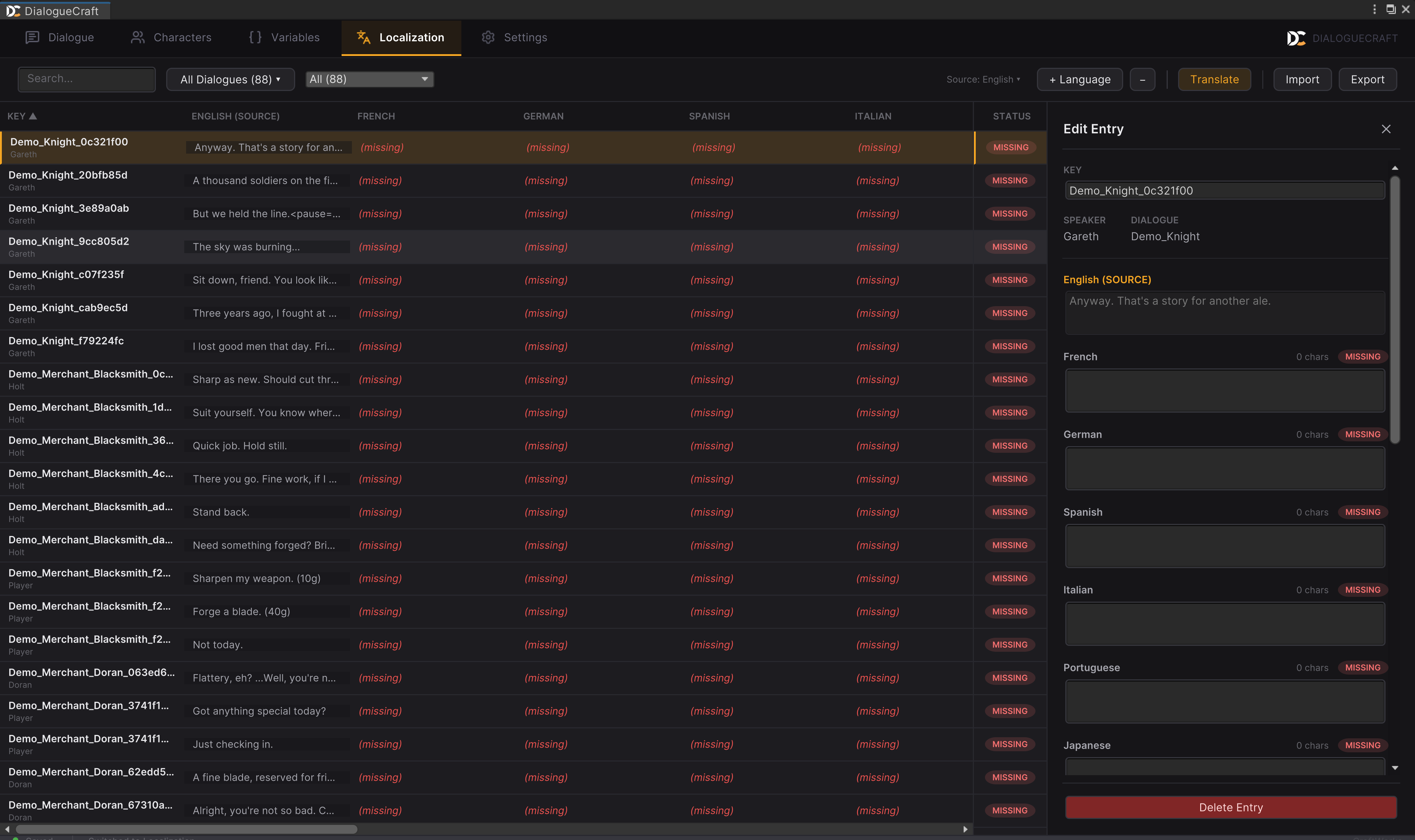
- Open the Dialogue Editor and go to the Localization tab.
- Select a target language from the dropdown.
- Each text node and choice option shows the source text and a translation field.
- Type translations directly. Status is set to
Draftautomatically. - Mark translations as
ReviewedorFinalwhen verified.
AI Translation
The AI Translation panel in the Dialogue Editor can translate text using CraftCore's AI backend. It supports single-entry and batch translation.
For details, see the AI Features guide.
CSV Import/Export
Use LocalizationCSVUtility (editor-only) to exchange translations with external tools or translators.
CSV Format
Key,Speaker,Context,MaxLength,en,es,fr
greeting_abc12345,Merchant,Friendly greeting,0,Hello there!,Hola!,Bonjour!
choice_abc12345_c1,,Player choice,50,Accept the quest,Aceptar la mision,Accepter la quete
Columns: Key, Speaker, Context, MaxLength, then one column per language code.
Export
LocalizationCSVUtility.ExportToCSV(database, "Assets/Localization/export.csv");
Exports all entries with all languages. Uses UTF-8 with BOM for Excel compatibility. Handles quotes, commas, and newlines in text correctly.
Import
int imported = LocalizationCSVUtility.ImportFromCSV(database, "Assets/Localization/import.csv");
Debug.Log($"Imported {imported} translations");
Import behavior:
- Existing entries are updated; new keys create new entries.
- New language columns are added to
supportedLanguagesautomatically. - Only non-empty translations are imported. Imported translations get
Draftstatus. - The default language column updates
defaultTextinstead of adding a translation.
Runtime Language Switching
LocalizationManager API
LocalizationManager is a static class -- no MonoBehaviour needed.
// Initialize (called automatically on first access)
LocalizationManager.Initialize();
LocalizationManager.Initialize(myDatabase);  // With specific database

// Get/set language
string current = LocalizationManager.CurrentLanguage;
LocalizationManager.SetLanguage("fr");              // Persists to PlayerPrefs
LocalizationManager.SetLanguage("fr", persist: false); // No persistence

// Clear saved preference (next launch uses default or OS detection)
LocalizationManager.ClearSavedLanguage();

// Query
IReadOnlyList<string> languages = LocalizationManager.SupportedLanguages;
string displayName = LocalizationManager.GetLanguageDisplayName("ja"); // "Japanese"

// Lookup
string text = LocalizationManager.GetText("greeting_abc12345");
string text = LocalizationManager.GetTextInLanguage("greeting_abc12345", "de");
bool exists = LocalizationManager.HasKey("greeting_abc12345");

// Language change event
LocalizationManager.OnLanguageChanged += (string newLang) => { RefreshUI(); };
GetString Aliases
These match LocalizeCraft naming for easy migration:
LocalizationManager.GetString("key");
LocalizationManager.GetString("key", arg0, arg1);         // Positional: {0}, {1}
LocalizationManager.GetString("key", variablesDictionary); // Named: {name}
LocalizationManager.GetStringForLanguage("key", "de");
Extension Methods
string greeting = "greeting_key".Localize();
string greeting = "greeting_key".Localize(("name", playerName));
string formatted = "item_count".LocalizeFormat(3, "swords");
Text Substitution
LocalizationManager.SubstituteAll() resolves variable patterns in localized text at runtime:
| Pattern | Example | Resolves To |
|---|---|---|
{VarName} | {PlayerName} | Global or local variable value |
{Actor.ID.Field} | {Actor.Merchant.Friendship} | Actor field value |
{Speaker.Field} | {Speaker.Mood} | Current speaker's field |
{Listener.Field} | {Listener.Trust} | Current listener's field |
{Relationship.A.B.Type} | {Relationship.player.merchant.Trust} | Relationship value |
{Speaker} | -- | Current speaker's display name |
{Listener} | -- | Current listener's display name |
{SpeakerId} | -- | Current speaker's character ID |
{ListenerId} | -- | Current listener's character ID |
The DialogueRunner calls SubstituteAll() automatically on all text and choice nodes.
LocalizedText Component
For static UI text that should update when the language changes:
// Attach LocalizedText to any GameObject with TextMeshProUGUI
[AddComponentMenu("CraftWorks/DialogueCraft/Utility/Localized Text")]
[RequireComponent(typeof(TextMeshProUGUI))]
public class LocalizedText : MonoBehaviour
Inspector fields:
key-- Localization keyupdateOnStart-- Refresh text on Start (default: true)updateOnLanguageChange-- Auto-refresh on language switch (default: true)
The component previews the default text in the editor without entering Play mode.
Mid-Dialogue Language Switch
If the player changes language while a dialogue is running, DialogueRunner automatically re-renders the current text or choices. No manual handling needed.
Save/Load Integration
The player's language preference is included in save data when saveLocalizationPreference is enabled on DialogueCraftPersistence (default: true). On load, the saved language is restored via LocalizationManager.SetLanguage().
LocalizeCraft Integration
If LocalizeCraft AI is installed, DialogueCraft can use its shared localization database. This gives you:
- A single database for dialogue text and UI text
- AI-powered translation via CraftCore
- Tags and notes for organization
- Platform-specific localization builds
Setup
- Install LocalizeCraft.
- In DialogueCraft Settings, set Localization Provider to
LocalizeCraft. - Dialogue keys are prefixed with
"dialogue."in the LocalizeCraft database.
Syncing Dialogue Keys
LocalizeCraftIntegration (editor-only) syncs text and choice nodes to the LocalizeCraft database:
// Sync a single dialogue asset
LocalizeCraftIntegration.SyncDialogueAsset(myDialogue);

// Sync all dialogue assets in the project
LocalizeCraftIntegration.SyncAllDialogueAssets();
When LocalizeCraft is the active provider, dialogue assets auto-sync on save via DialogueAssetSaveProcessor.
Key format in LocalizeCraft: dialogue.{sanitized_asset_name}.{node_guid_8chars}
Runtime
The LocalizeCraftProvider wraps LocalizeCraft.LocalizationManager and handles key resolution transparently. Language changes in LocalizeCraft propagate to DialogueCraft and vice versa.
Unity Localization Integration
If Unity's official Localization package is installed:
Setup
- Install
com.unity.localization. - In DialogueCraft Settings, set Localization Provider to
Unity Localization. - Create a String Table named
"Dialogue"in the Localization Tables window. - Add dialogue keys to the table (same key format:
dialogueId_nodeGuid8chars).
Runtime
UnityLocalizationProvider reads from the "Dialogue" StringTable using Unity's LocalizationSettings. Language changes through Unity's locale system are detected automatically.
// Uses Unity's locale system
LocalizationProviderManager.SetLanguage("fr");
// Internally: LocalizationSettings.SelectedLocale = matching Locale
Provider Manager
LocalizationProviderManager is the static entry point that routes through the active provider:
// Access the active provider
ILocalizationProvider provider = LocalizationProviderManager.Provider;

// Quick lookups (delegates to active provider)
string text = LocalizationProviderManager.GetString("key");
bool exists = LocalizationProviderManager.HasKey("key");

// Switch provider at runtime
LocalizationProviderManager.SetProvider(LocalizationProviderType.BuiltIn);

// Check capabilities
bool hasAI = LocalizationProviderManager.SupportsAITranslation;

// List available providers (based on installed packages)
List<LocalizationProviderType> available = LocalizationProviderManager.GetAvailableProviders();